

Manchester City vs Liverpool: Spillere, Form og Live-Stream Norge
Manchester City vs Liverpool er et av de største oppgjørene i engelsk fotball. Når disse
Rabatter på mange produkter. For mer informasjon, kontakt oss via chatten eller trykk kontakt oss

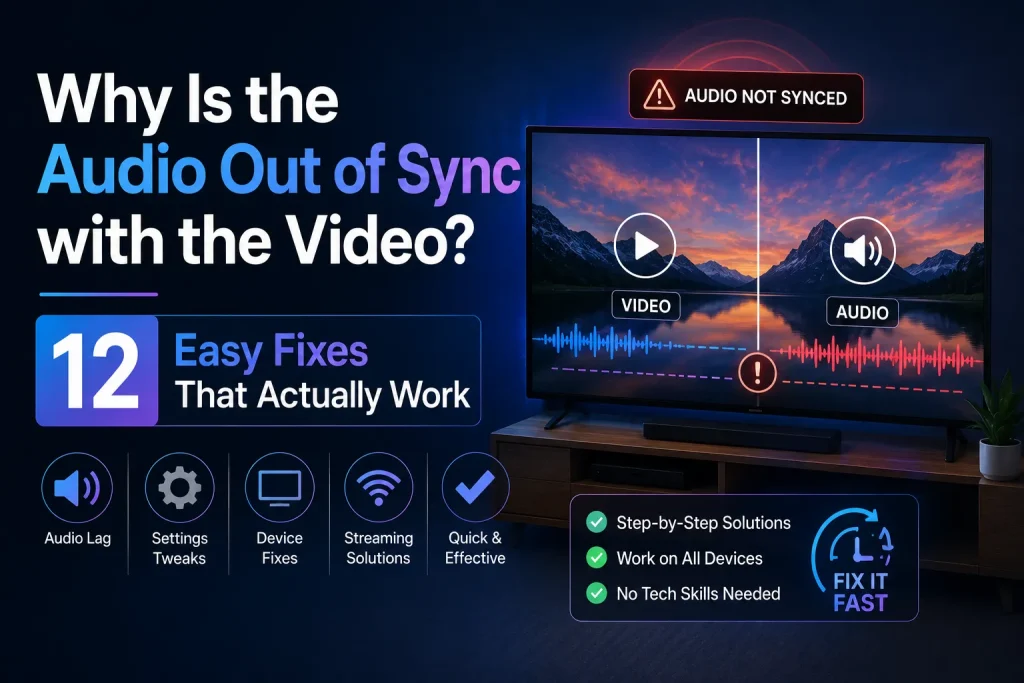
Watching your favorite movie or live event becomes frustrating when the sound doesn’t match the picture. You may hear people speaking before their lips move, or explosions happen a second after the action appears on screen. If you’ve been wondering why is the audio out of sync with the video, you’re not alone.
Audio synchronization issues can happen on Smart TVs, streaming devices, computers, smartphones, and even during live broadcasts. Fortunately, most sync problems can be solved with a few simple adjustments.
This guide explains the most common causes of audio delay and provides practical solutions anyone can follow.
Audio sync, often called lip sync, refers to the timing between sound and video.
When everything works correctly:
When audio becomes out of sync, the sound may play earlier or later than the video, making the viewing experience distracting.
There isn’t just one reason. Several factors can cause audio synchronization problems.
Streaming platforms depend on a stable internet connection. If your connection speed fluctuates, the video and audio streams may not stay perfectly synchronized.
Streaming apps occasionally experience temporary software issues that affect playback.
Often this alone restores proper synchronization.
Older streaming devices or Smart TVs may struggle when running multiple apps or processing high-resolution video.
Wireless headphones and Bluetooth speakers sometimes introduce a slight delay because audio must be transmitted wirelessly.
Some televisions apply extra sound processing to improve audio quality. These enhancements can introduce slight delays.
Examples include:
Disable advanced sound processing temporarily and test playback again.
Loose or damaged HDMI cables can occasionally cause communication problems between devices.
Outdated firmware may contain bugs that affect audio playback.
Check for updates on:
Keeping software updated improves stability and performance.
Live broadcasts are more likely to experience synchronization problems because video and audio are processed in real time.
Temporary network congestion may affect playback.
Many devices include an Audio Delay or Lip Sync adjustment.
If this setting changes accidentally, audio timing may become incorrect.
Open your device’s audio settings and restore the default synchronization value or adjust it until the sound matches the picture.
If several devices are using the same internet connection simultaneously, available bandwidth may decrease.
Examples include:
Reduce network activity while streaming whenever possible.
Over time, streaming apps collect temporary data that may affect performance.
Clear the application’s cache if your device provides this option.
Restart the application afterward.
Some older devices may not fully support newer streaming technologies or high-resolution video formats.
Using a modern streaming device or updated Smart TV software can improve playback performance and reduce synchronization issues.
If your audio and video are not matching, try these steps in order:
Following these best practices can reduce the chances of future sync issues:

I am Lucas Grant, a researcher and digital entertainment writer who explores live streaming services, smart TV apps, and the future of internet-based television.
Manchester City vs Liverpool er et av de største oppgjørene i engelsk fotball. Når disse

TV-vanene våre har endret seg. Før var det enkelt: én TV i stua, én fjernkontroll

For norske hockeyfans er NHL streaming 2026/27 et aktuelt tema. Den nye NHL-sesongen er i
Hvordan installerer/konfigurerer du AppleTV
MERK FØLGENDE! Fungerer kun med Apple TV 4 og 4k!
vi kan anbefale IPTVX, IPTV+ og iPLAY, appene har lignende instruksjoner for å komme i gang her nedenfor vi skriver det for iPLAY
Gjør dette!
1. Last ned og installer iPlayTV fra appbutikken direkte i din Apple TV.
2. Opprett en ny spilleliste og velg “Xtream Server” og gi spillelisten navnet “VIKING IPTV”.
3. Skriv deretter inn server-URLen som du finner i m3u-lenken. alt fra http:// til 2095.
4. Skriv inn brukernavn og passord som du mottar fra oss i en e-post når du har kjøpt et abonnement. (eller finn i m3u-lenken din)
5. Hopp over EPG, den er allerede integrert.
6. Velg at spillelisten og EPG skal oppdateres hver dag.
Slik installerer/konfigurerer du TViP S-Box
1. Plugg alt inn og start boksen
2. Velg språk og tidssone og fullfør oppdateringen av boksen til den nyeste programvaren
3. Boksen starter på nytt etter oppdateringen
4. Gå til Innstillinger og deretter til Nettverk
5. Skriv ned MAC-adressen (kontroller at den er den samme på boksen til boksen din)
6. Gå til TV i venstremenyen og endre alle innstillinger slik at det ser slik ut:
Strømkilde: Multicast
UDPXY-server:
MPEG-TS-buffering, msek: 5000
DVR-lagring: Ingen lagring
Timeshift-lagring: Internlagring
Auto-timeshifting: Av
Innholdskilde: Nettportal
Under Innholdskilde: Nettportal er det en knapp som sier Setup Web Portal. Skyv den
og angi følgende innstillinger:
Portal-URL: Oppgis ved bestilling.
Portaladministrator: Av
Bruk nettportal: Hele systemet
API-modus: GSTB
Trykk deretter på Bruk.
MERK! Noen nyere TV-er har problemer med å synkronisere Refresh Rate (Hertz/FPS) med boksen og da kan du få såkalt FPS LAGG. Dette løser du ved å gå til Innstillinger – Skjerm og sette HDMI Auto Framerate til PÅ
Hvis du kjøpte et abonnement, vennligst send oss en e-post med MAC-adressen.
Bruk skjemaet på Kjøp-siden for å bestille et abonnement
SNARTVEIER FOR FJERNKONTROLL I EN KANAL:
Forstørrelsesglass: Kan endre språk/teksting (hvis tilgjengelig i kanalen) eller aktivere 3D
MENY: Trykk på Aspect Ratio for å endre sideforhold, f.eks. 4:3, 16:9 osv
Gear: Åpner TVIP-systeminnstillinger
Knappen nederst til venstre: Kan også endre sideforholdet i en kanal
start boksen på nytt
trykk på S.INFO 1 9 S.INFO på fjernkontrollen
Tilbakestilling til fabrikkstandard
S.INFO 4 9 S.INFO på fjernkontrollen
Slik installerer/konfigurerer du IPTV Smarters
1. Skriv inn et hvilket som helst navn.
2. Skriv inn brukernavnet ditt.
3. Skriv inn passordet ditt.
5. Skriv inn: http://xxxxx.xx:2095 (portal tilgjengelig ved kjøp eller hvis du kontakter oss)6. Trykk “LEGG TIL BRUKER”
Nå er du ferdig!
MERK FØLGENDE! Du finner brukernavnet og passordet ditt i m3u-lenken din, og det ser slik ut:
http://xxxxxx.xx:2095/get.php?username=V2cJ3vQWY8&password=T3g60eOuvH&type=m3u_plus&output=ts
Hvor: V2cJ3vQWY8 er brukernavnet ditt og T3g60eOuvH er passordet ditt.